How to Encrypt a File Before Sending It via Email
Emailing sensitive documents shouldn't keep you awake at night. Learn exactly how to encrypt a file for email using built-in operating system tools, free utilities, and professional security software designed for transit protection.
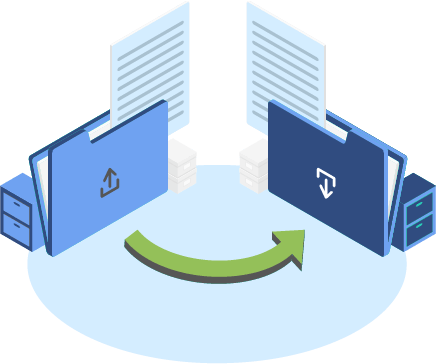
To encrypt a file for email quickly, right-click the file, select Compress or Add to Archive, and set a strong password (if your OS allows it). For higher security and guaranteed AES-256 compliance, use dedicated encryption software like Folder Lock to password-protect the file before attaching it, ensuring the data remains secure even if the email is intercepted.
Table of Contents
Why You Must Encrypt Documents for Email
Standard email protocols like SMTP and IMAP were not designed with end-to-end security in mind. While modern email providers use TLS to encrypt the connection between servers, the files themselves often sit in plain text on servers and in recipient inboxes.
If you need to send encrypted files over email (such as financial records, HIPAA-regulated patient data, or proprietary business documents), relying on your email provider's default transit security is insufficient. You must encrypt the file before attaching it.
This guide covers how to secure your attachments using native methods, zip encryption, and professional-grade AES encryption tools.
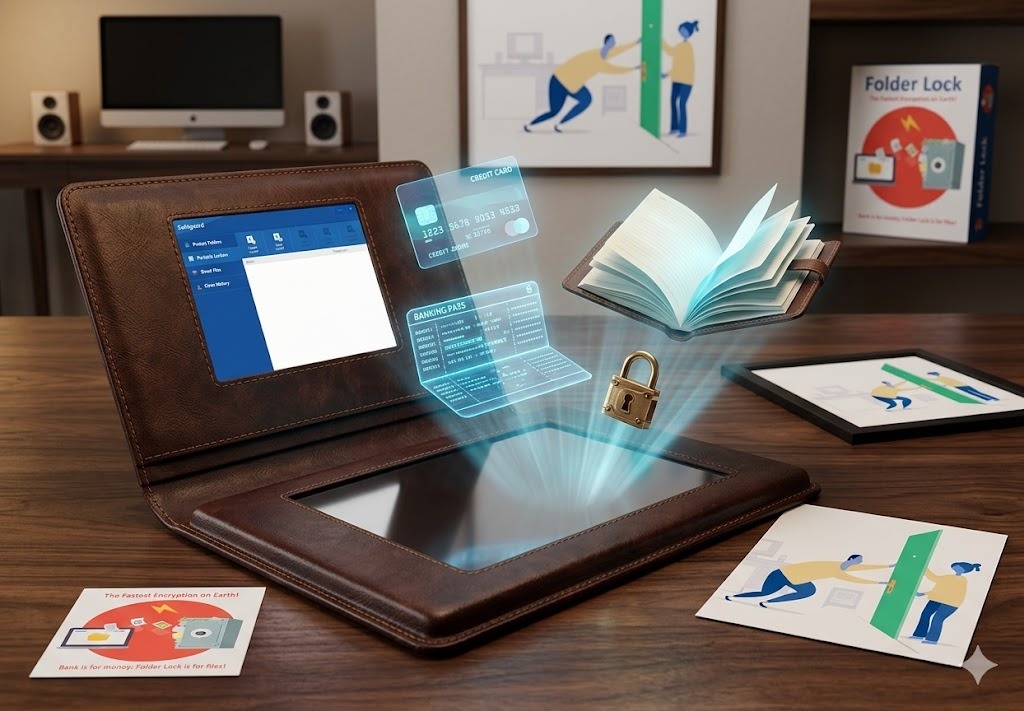
Secure Email File Transfer — Step-by-Step Guide
There are multiple ways to secure an email attachment, ranging from basic password protection to military-grade AES-256 encryption. Here is how each method works.
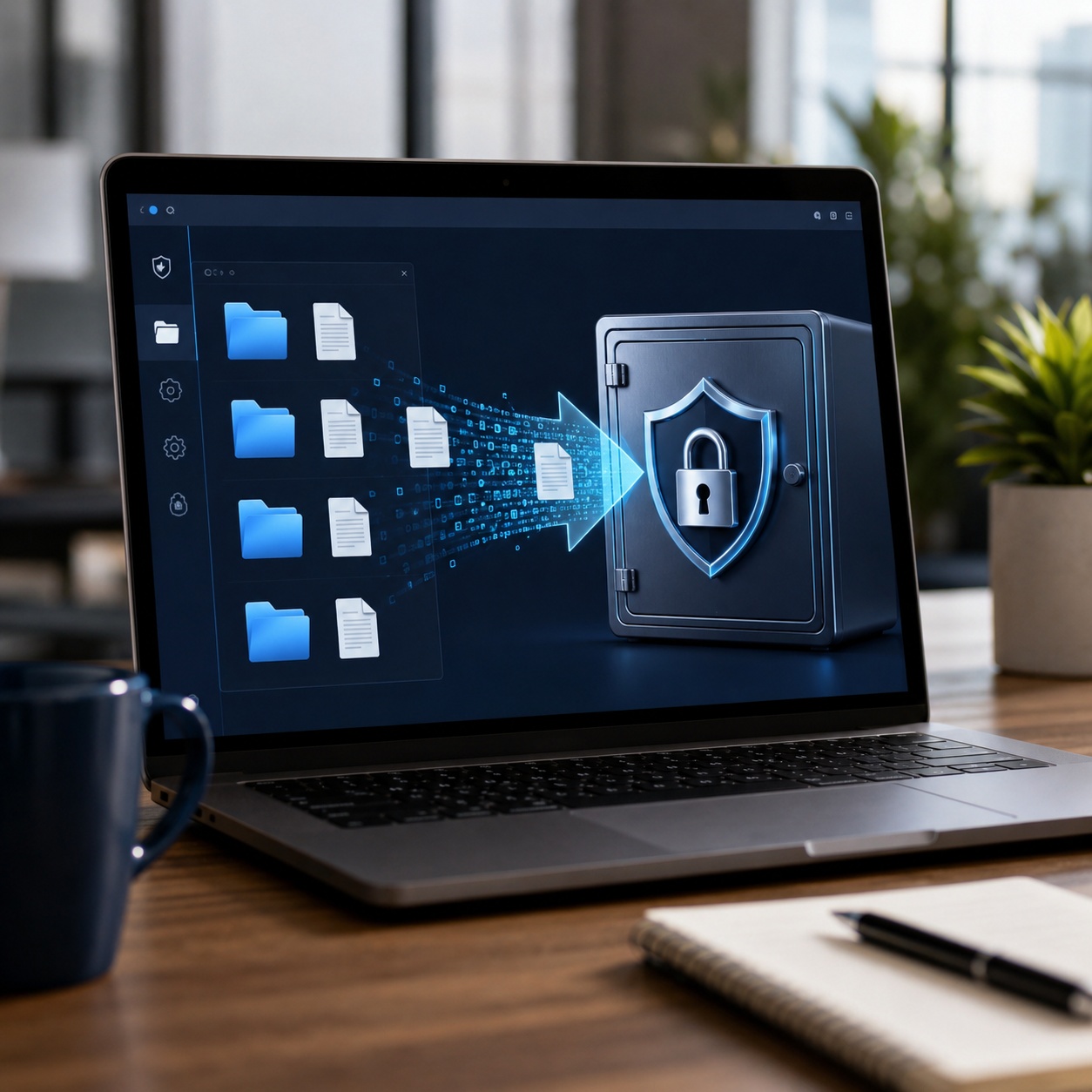
Method 1: Encrypt a ZIP File to Send via Email
The most common native approach is creating a password-protected ZIP archive. This method compresses the file and requires a password to extract it.
- On Windows: Windows 10 and 11 do not natively support password-protecting ZIPs from the right-click menu. You must download a free utility like 7-Zip. Right-click the file > 7-Zip > Add to archive > Enter password > Select AES-256.
- On Mac: Open Terminal and type
zip -er archive_name.zip file_to_compress, then enter your desired password when prompted.
Limitations: Manual terminal commands on Mac are cumbersome for non-technical users. Third-party free ZIP tools on Windows can be clunky and sometimes leak metadata (like file names) even when encrypted.
Method 2: Native Office Document Encryption
If you specifically need to Encrypt a Word document before emailing or a PDF, you can use the software that created it.
- Microsoft Word/Excel: Go to File > Info > Protect Document > Encrypt with Password.
- Adobe Acrobat (PDFs): Go to File > Protect Using Password.
Limitations: This only works on specific file types. If you need to send a mix of images, PDFs, and spreadsheets, you have to encrypt each one individually, creating a nightmare for the recipient.
Method 3: Dedicated File Encryption Software
For those handling sensitive data regularly, relying on native tools is inefficient. Dedicated data encryption software allows you to select any file, folder, or batch of documents and instantly lock them into a single secure, AES-256 encrypted package that can be easily emailed.
These tools handle the heavy lifting of key management and ensure compliance with strict privacy standards (like HIPAA, GDPR, or PCI-DSS) without requiring the user to understand command-line prompts.
The Tool We Recommend for Most Users
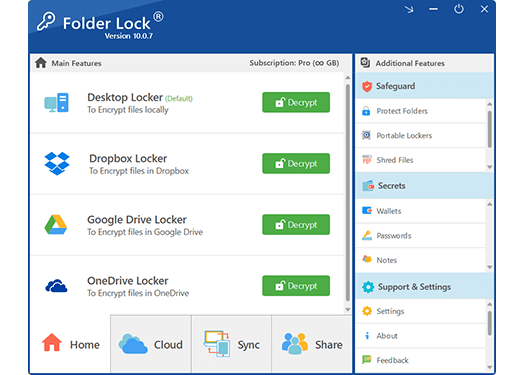
Of all the manual methods and free utilities we tested, Folder Lock 10 provides the cleanest, most reliable workflow for encrypting files before uploading to the cloud or attaching them to an email.

 [Folder Lock 10 Encryption Interface Screenshot]
We recommend Folder Lock because it eliminates the complexity of securing files. Instead of memorizing terminal commands or wrestling with clunky open-source zip managers, Folder Lock allows you to create secure, encrypted "Portable Lockers" specifically designed for transit. You can attach these self-contained packages directly to your emails.
Beyond simple email attachments, Folder Lock 10 offers unparalleled flexibility. It operates seamlessly across Windows, Mac, iOS, and Android devices. If your file is too large for a standard email, the software integrates directly with Dropbox, Google Drive, and OneDrive, allowing you to encrypt the data locally before it ever touches the cloud.
What Makes a Good Email Encryption Tool?
When evaluating email encryption software for small business or personal use, these are the core capabilities you need to ensure data remains safe in transit.
Military-Grade AES-256 Encryption
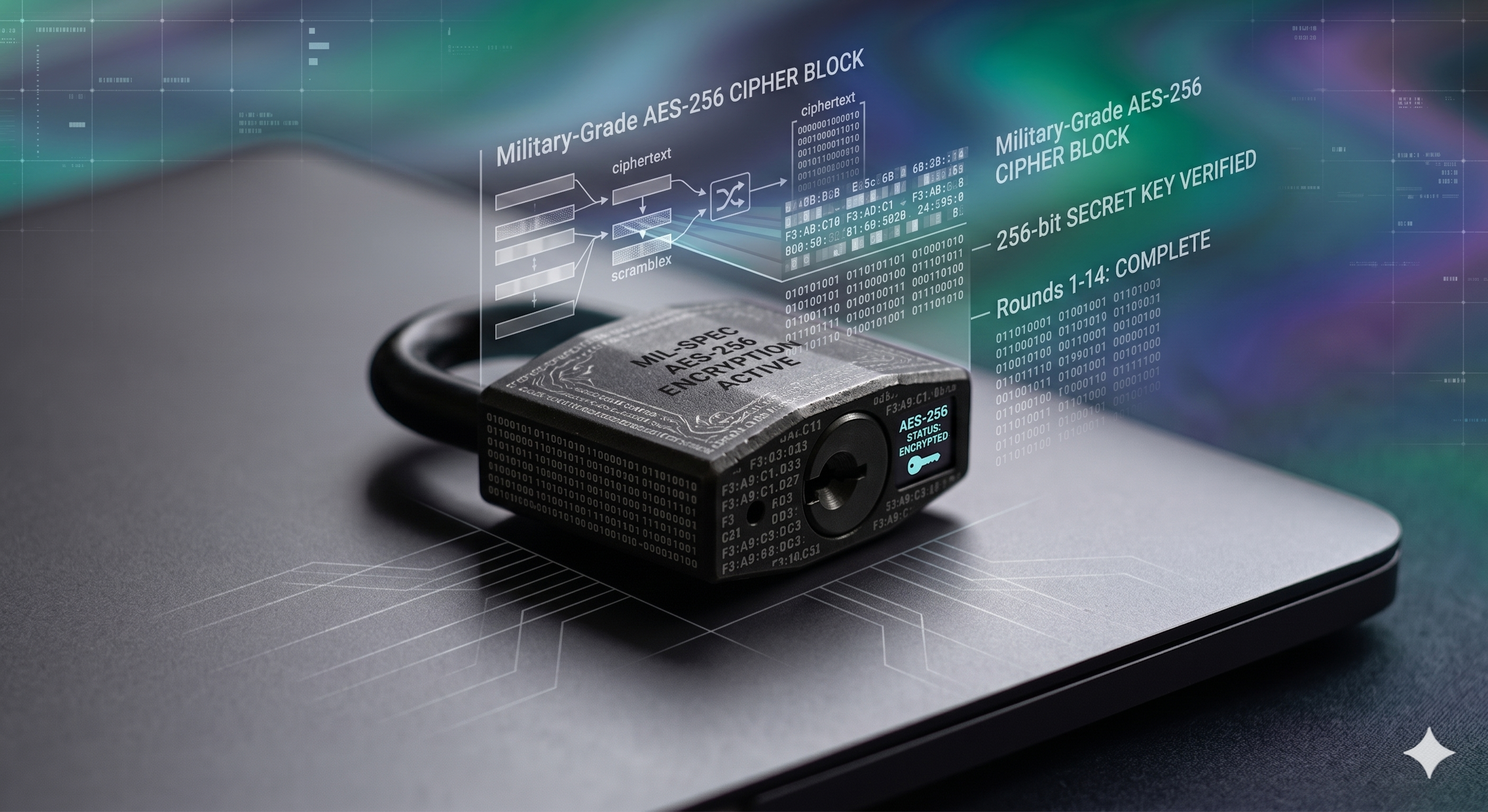
The strongest encryption standard available to consumers. Folder Lock utilizes on-the-fly Advanced Encryption Standard (AES) with 256-bit keys. This ensures that your files are mathematically impenetrable. Even if a malicious actor intercepts your email, brute-forcing the attachment open would take modern supercomputers billions of years.
Self-Extracting Portable Lockers (.flka)
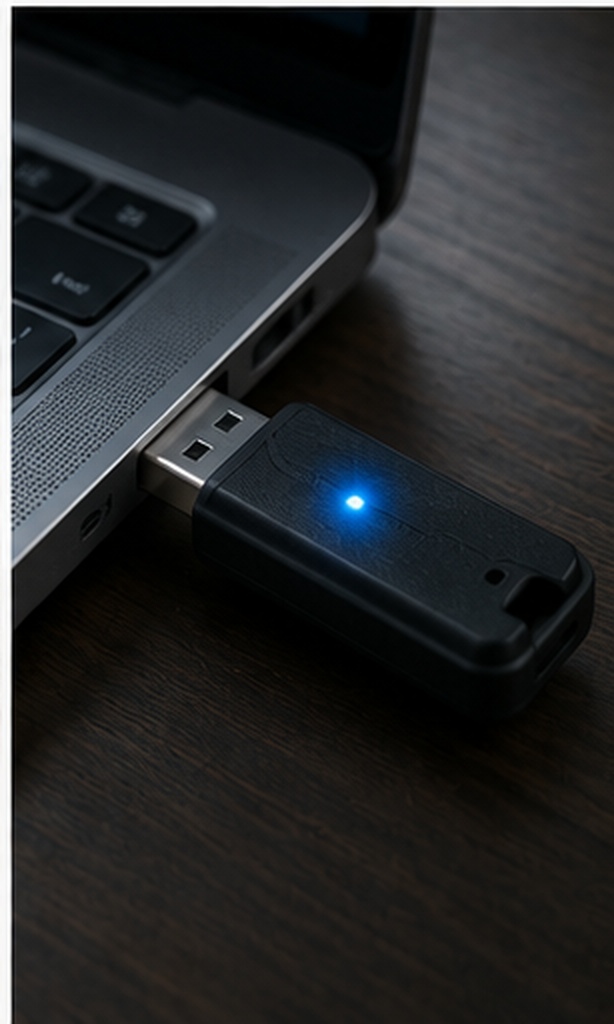
Sending an encrypted file is useless if the recipient cannot open it. Folder Lock solves this by allowing you to generate "Portable Lockers." These are standalone, secure executable files that you can attach to an email or save to a USB drive. The recipient simply double-clicks the file and enters the password to decrypt the contents—they do not necessarily need to install the full software suite themselves.
Secure File Shredding Post-Encryption
A common vulnerability when sending secure emails is leaving the original, unencrypted file sitting on your desktop. Top-tier software includes an integrated digital shredder. Once you have securely packed your sensitive documents into an encrypted locker for emailing, the software can permanently wipe the original source files from your hard drive, ensuring they cannot be recovered by forensic tools.

Secure Cloud Link Sharing
Standard email providers typically cap attachments at 25MB. For massive datasets, Folder Lock integrates directly with cloud providers like Dropbox and Google Drive. It encrypts your files locally on your machine, syncs the unreadable encrypted vault to the cloud, and utilizes asymmetric RSA encryption to securely share access permissions with authorized colleagues without ever transmitting your master password.
Best Ways to Send Encrypted Files Securely: At a Glance
Password-Protected ZIP
Security: Variable (AES-256 available in third-party tools)
Ease of Use: Moderate
Best For: Tech-savvy users who don't mind downloading open-source archiving tools.
Limitations: Metadata often remains visible; requires recipient to understand extraction tools.
Dedicated Software (Folder Lock)
Security: High (Strict AES-256)
Ease of Use: Excellent
Best For: Professionals, non-tech employees, and anyone handling compliance-regulated data.
Limitations: Commercial software (paid license required for full features).
Office/PDF Native Locks
Security: Moderate to High
Ease of Use: Good for single files
Best For: Sending exactly one Word document or PDF.
Limitations: Does not scale to multiple file types; tedious to manage multiple passwords for different files.
How to Encrypt Files to Send Via Email using Folder Lock
If you choose to use professional software to handle your email security, here is how simple the workflow is when creating an attachment.

-
Access the Portable Locker Feature
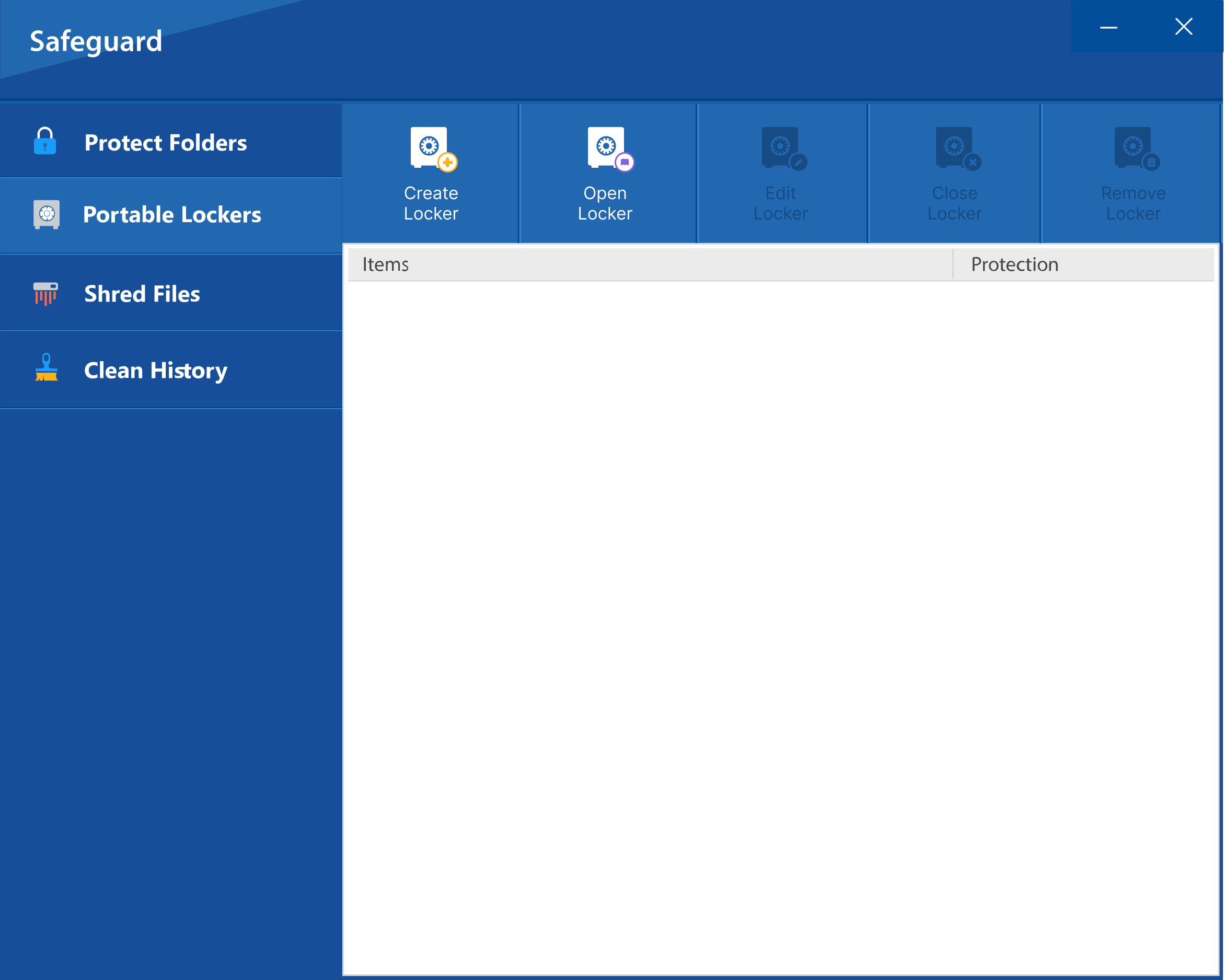
Open Folder Lock, navigate to the "Safeguard" menu, and select "Portable Lockers." This specific tool is designed to create secure packages meant for transit via email or USB. Click on "Create Locker." -
Configure Your Secure Attachment
Give your new locker a descriptive name and choose where to save it (such as your Desktop for easy email attachment). Set a strong, unique password specifically for this locker, and designate a maximum file size limit for the container. -
Add Your Sensitive Files
Once the locker is generated, it will mount as a secure virtual drive. Drag and drop your PDFs, Word documents, images, or financial spreadsheets directly into this secure window. Folder Lock will instantly encrypt them on-the-fly using AES-256 bit encryption. -
Close and Attach
Click "Close Locker" within the application. Your files are now sealed inside a single, highly secure.flkaor executable file. Open your email client, attach this secure file to your message, and hit send. Remember to share the decryption password with your recipient via a separate, secure communication channel like a phone call or encrypted text message.
Alternative: Securely Sharing Large Files via Cloud Lockers
If you need to send an entire database, a massive video file, or an archive that exceeds your email provider's 25MB attachment limit, traditional email encryption won't work. For these scenarios, Folder Lock 10 allows you to utilize your existing cloud storage securely.
By navigating to the Cloud Tab within the software, you can integrate your Google Drive, Dropbox, or OneDrive accounts. Folder Lock will create a dedicated locker inside your cloud storage. Crucially, the software utilizes client-side encryption—meaning your files are locked down on your computer before they are uploaded. The cloud provider only receives a scrambled, unreadable vault.
You can then use the Share feature within Folder Lock to grant specific email addresses access to the locker. Through a system of public and private keys (RSA encryption), authorized recipients who also use the software can access the files without you ever needing to send them your master password.

Which Encryption Method Should You Use?
Not sure how you should send your file? Use our quick assessment to find the right approach.
What type of files are you sending?
How sensitive is this data?
Recommended: Native Encryption or ZIP
For low-risk or single files, you can use the built-in password protection in Microsoft Word/Adobe Acrobat, or use a free ZIP utility to compress and protect the file.
Recommended: Dedicated AES-256 Software
For business documents, multi-file folders, or highly sensitive data, relying on native tools is too risky. We highly recommend using Folder Lock to ensure AES-256 compliance, metadata protection, and ease of use.
See our Folder Lock breakdownTroubleshooting Common Email Encryption Issues
My email client is blocking the encrypted attachment
Email providers like Gmail occasionally block encrypted ZIPs or self-extracting executable files (like those created for extreme portability) because their virus scanners cannot read inside them to verify they are safe. How to fix: If your email client rejects the attachment, the most secure workaround is to use Folder Lock's integrated Cloud Sharing feature instead. Encrypt the file into a Dropbox or Google Drive locker, and securely share access permissions with the recipient rather than sending the physical file through email servers.
How to encrypt files without slowing down your computer
Full disk encryption can sometimes impact performance on older hard drives. If you only need to protect files for email, use on-the-fly file-level encryption (like Folder Lock's virtual lockers). Because the decryption happens dynamically in your computer's memory rather than constantly writing to the hard drive, it requires minimal system resources and occurs almost instantaneously.
I forgot the password to a file I encrypted
If you used a true AES-256 encryption tool, there are zero built-in backdoors to recover a forgotten locker password—that is the fundamental point of the security standard. If the password is lost, the data is unrecoverable. Always store your encryption keys or passwords in a secure password manager before encrypting and shredding the original unprotected files.
Folder Lock 10: Free vs Pro Version
If you decide to go with our recommended tool to protect your email attachments, here is how the pricing tiers compare.
Free Version
- Up to 1 GB Locker Size limit
- Sync across 2 devices max
- Mobile Apps (iOS & Android)
- Secure Wallets & Notes
- Cannot share files or use Portable Lockers
Pro Version
$39.95 / one-time
- Unlimited Locker Size
- Sync across up to 5 devices
- Portable Lockers (crucial for email/USB)
- Unlimited Secure File Sharing
- Military-grade File Shredder
- Windows History Cleaner
Frequently Asked Questions
Our Verdict
Email is fundamentally insecure for transmitting raw, unprotected sensitive data. While native OS tools and free ZIP utilities can provide a basic layer of password protection, they often fall short on usability, large file support, and metadata security.
For consistent, reliable, and compliant file protection, encrypting a file for email is best handled by dedicated software. Folder Lock 10 provides an unparalleled balance of AES-256 security, Portable Locker generation for simple attachments, and cloud-integrated sharing for massive files, ensuring your data remains yours, no matter whose servers it passes through.